「業務を自動化したいけど、自由にツールを使えない」「コーディングエージェントや Playwright が職場ルールで使えない」という場面、ありませんか?
私の周りでも、セキュリティと運用ルールの観点で使えるツールがかなり限定されるケースがあります。
そこで今回は、Microsoft 365 Copilot と PowerShell を組み合わせて、まずは PowerShell 単体で完結する 自動化方法を紹介します。 また、今回紹介する”UI オートメーション”の良さは、画面が実際に動くことです。
誰が見ても「あ、勝手にやってくれている」と伝わるのでとても分かりやすいです。
この記事のゴールは次の2つです。
- PowerShell 単体で回せる現実的な自動化の例を知る
- Copilot への相談プロンプトを理解する
UI オートメーションはマウス操作や画面フォーカス、表示タイミングの影響を受けやすく、不安定になりやすいです。 本命としては Playwright や API 連携のほうが堅いです。 しかし、今回の方法が必要な場合もあると思います。
まず Copilot など目の前にある AI を活用することで、業務効率化ができるというインパクトを出すことができることを証明する。その次に何か便利なAIを導入するなど最初の「突破口」のように活用することを想定しています。
2. 前提・環境情報
今回の基本構成は「PowerShell 単体で完結、Excel は発展編で任意追加」です。
| レイヤー | 役割 | 必須/任意 |
|---|---|---|
| PowerShell | ブラウザ起動、UI操作、結果抽出、CSV 出力 | 必須 |
| ブラウザ(Edge等) | 社内ポータル表示など | 必須 |
| 社内ポータル | 経費精算の申請状況を参照 | 必須 |
| Microsoft 365 Copilot / Excel | スクリプトの下書き、ファイル出力、ボタン実行、結果確認 | 任意 |
365 Copilot (Basic) / (Premium) は、Microsoft Learn でも案内されているアプリ内表示ラベルを指しています。 M365 Copilot は別の AI でも問題ありません。選択できるモデルによっては難易度があがる可能性があります。
本記事は M365 Copilot (Basic) かつ、GPT 5.5 Think Deeper を使って検証しています。
3. 自動化対象システム
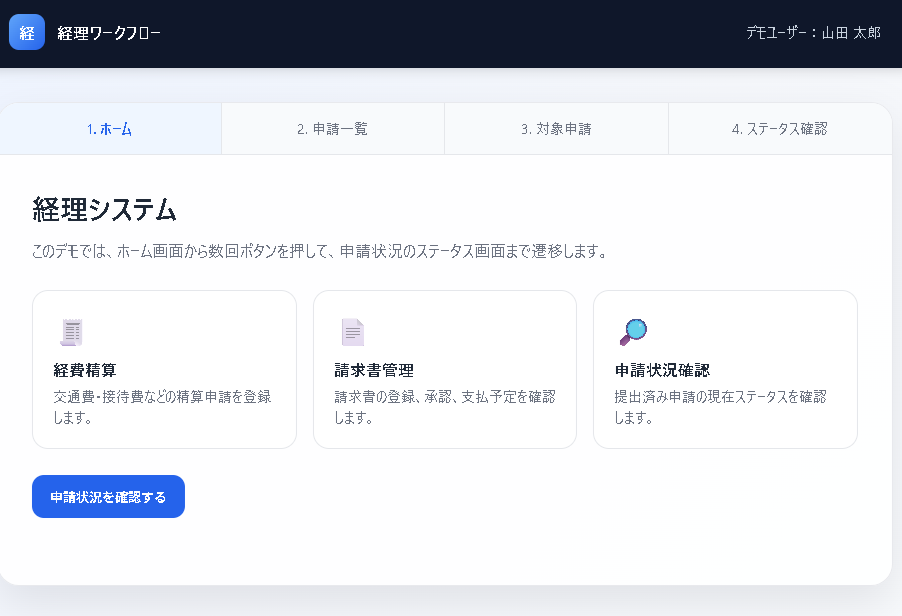
対象業務は「経費精算の状況確認」です。
こちらのテスト用に作ったシステムから経理の状況を自動で入手するスクリプトを、AI を使って書いていきます。

4. 経理清算状況の確認を自動化
さきほどのサイトを自動で入力していきます。
M365 Copilot Chat で
「UIautomationでコード書いて
要件は以下
https://aaaaabbbbbxxxx.com
これを開いて
申請状況を確認ボタンを押して
2026年6月 経費精算と入力して検索ボタン押して
一番の上の詳細を見るボタンを押す
ステータスを表示を押して
現在のステータスの下にあるステータスを確認してユーザに教える
」
と言った感じで、コードを書いてもらいます。
Python/Selenium 等を提案してくることがあります。使える環境であればそちらでもよいですが、今回は Windows 標準機能だけで紹介していきます。
必要に応じて「Powershellだけで書いてください」といったプロンプトを追加してください。
留意点
システムや要件によっては自動化しない範囲も明確にしておくとよいです。
例えば以下です。
- ログイン操作
- MFA 操作
- 申請・承認・取消・差戻しなどの更新操作
ログインが必要な場合はログイン画面まで来たら待機するスクリプトを AI に書いてもらう等にするとよいと思います。認証情報をスクリプトに持たせないようにするとよいと思います。
5. 実行・修正をループ
- コードを PowerShell で実行してみる
- 取得結果を確認する
- エラーコードやうまくいかない場合は AI に状況を説明して修正してもらう
- 要件を満たすまで追加・修正・テストを繰り返す
「最初から全部自動化」をしようとするとだいたい失敗しますので、小さくスタートして徐々に機能を追加していくとよいです。
今回のデモを行う際にも 5 回ほど修正しました。どのボタンが押せていないか、ボタンの位置は○○の近くにあるなど位置情報を伝えながら修正しています。
6. できあがったもの
このようになりました。
以下は自動で動いている様子をGIFにしています。


7. 応用編
上記のように PowerShell を使うことで RPA ができます。 しかし、コードを持ち運ぶのは不便です。
そこで、VBA と組み合わせると運用も楽になります。
具体的には以下のようにします。
- 出来上がったコードを Excel に貼り付け
- 実行用の bat ファイルを作ってと AI に依頼 → Excel に記載
- VBA で Excel にある上記を出力して実行するボタンを作成してと AI に依頼
そうすると Excel 上でコードの一覧と、実行まで完結できるようになります。
8. M365 Copilot (Premium) を使える場合
上記よりもう少し簡単になります。
Excel の Copilot では、チャット経由でワークブックを編集する機能が案内されており、Excel 上のシート内容を見ながら修正指示を出しやすくなっています。コードをセルに保持する構成なら、そのたたき台の修正も進めやすくなります。
また、Microsoft 365 Copilot まわりでは Work IQ という知能レイヤーが案内されており、対象業務システムのマニュアルなどが社内情報として存在する場合、それらを踏まえて調査や下書きを進めやすくなります。
例えば以下のように使用します。
- M365 Copilot (Premium) で Copilot Chat の work mode を使い、自動化したい業務に関する社内情報を検索する
- 情報を元に自動化方針を固める
- 自動化用のコードを書いてもらう
Excel 完結構成のイメージ
たとえば次のような構成です。
| 要素 | 役割 |
|---|---|
| PowerShell シート | .ps1 に出力したい行を保持する |
| Batch シート | 起動用 .cmd に出力したい行を保持する |
| 結果シート | CSV の取込先、ログ確認先にする |
| VBA ボタン | シート内容をファイルに書き出して実行する |
この形にすると、Excel 上で Copilot に相談しながら PowerShell やバッチのたたき台を直し、そのままボタン実行まで持っていけます。
つまり、デバッグも試行錯誤も Excel の中で完結しやすくなります。
VBAコードについてもAIに聞けば書いてくれますので、同じ要領で試しながら修正すると完成します。
9. 最後に
制約がある職場でも、AI 活用は十分始められます。
フル自動化でなくても、確認業務だけを切り出した“ちょいRPA”なら、小さく始められます。
コード内容に不安がある場合は、レビューやレビューが大変な場合は専用の Powershell レビューエージェントを作ってレビュー工数を減らす等を検討してもよいかと思います。
あくまで「自動化できている」感が出るという案で、本来は別な方法をとるほうが簡単ですが、まずは AI 活用で価値を見せて次の AI 活用に繋げる。といったボトムアップな切り口の 1 つとして活用するなど必要な方向けに参考になれば幸いです。
思い付きで書いている部分もありますので、何か気になる点等あればぜひコメントで優しく教えていただけますと幸いです。
10. サンプルコード
sample_ui_automation_status_check.ps1 を開く# sample_ui_automation_status_check.ps1
# PowerShell only / No external libraries required
# Uses Windows standard UIAutomation and Win32 mouse click.
#
# This sample opens a local demo HTML file, clicks several buttons,
# and retrieves the text displayed below a specific label.
#
# NOTE:
# - Replace $Url and UI labels with your own demo values.
# - Do not publish real internal URLs, user paths, customer names, or business-specific values.Add-Type-AssemblyNameUIAutomationClient
Add-Type-AssemblyNameUIAutomationTypes
Add-Type-AssemblyNameSystem.Windows.Forms
Add-Type-AssemblyNameSystem.Drawing# Dummy URL for external publication.
# Replace this with your own demo file or test page.
$Url="file:///C:/Path/To/Demo/sample_status_demo.html"# Mouse click helper class
if(-not("MouseClicker"-as[type])){Add-Type-TypeDefinition@"
using System;
using System.Runtime.InteropServices; public class MouseClicker { [DllImport("user32.dll")] public static extern bool SetCursorPos(int X, int Y); [DllImport("user32.dll")] public static extern void mouse_event(int dwFlags, int dx, int dy, int cButtons, int dwExtraInfo); public const int MOUSEEVENTF_LEFTDOWN = 0x02; public const int MOUSEEVENTF_LEFTUP = 0x04; public static void LeftClick(int x, int y) { SetCursorPos(x, y); System.Threading.Thread.Sleep(100); mouse_event(MOUSEEVENTF_LEFTDOWN, x, y, 0, 0); System.Threading.Thread.Sleep(100); mouse_event(MOUSEEVENTF_LEFTUP, x, y, 0, 0); }
}
"@
}functionWait-Seconds{param([double]$Seconds)Start-Sleep-Milliseconds($Seconds*1000)
}functionGet-BrowserWindow{param([int]$TimeoutSeconds=20)$end=(Get-Date).AddSeconds($TimeoutSeconds)while((Get-Date)-lt$end){$desktop=[System.Windows.Automation.AutomationElement]::RootElement$windows=$desktop.FindAll([System.Windows.Automation.TreeScope]::Children,[System.Windows.Automation.Condition]::TrueCondition)foreach($windowin$windows){try{$name=$window.Current.Name$className=$window.Current.ClassNameif([string]::IsNullOrWhiteSpace($name)){continue}if($name-like"*sample_status_demo*"-or$name-like"*Demo*"-or$name-like"*Status*"-or$name-like"*Microsoft Edge*"-or$name-like"*Google Chrome*"-or$className-like"*Chrome_WidgetWin*"){return$window}}catch{}}Wait-Seconds0.5}throw"Browser window was not found."
}functionRefresh-Root{returnGet-BrowserWindow-TimeoutSeconds10
}functionClick-Element{param([System.Windows.Automation.AutomationElement]$Element)if($null-eq$Element){throw"Target element is null."}try{$Element.SetFocus()Wait-Seconds0.2}catch{}# 1. Try InvokePatterntry{$invokePattern=$Element.GetCurrentPattern([System.Windows.Automation.InvokePattern]::Pattern)$invokePattern.Invoke()Wait-Seconds0.8return}catch{}# 2. Try clickable pointtry{$point=$Element.GetClickablePoint()[MouseClicker]::LeftClick([int]$point.X,[int]$point.Y)Wait-Seconds0.8return}catch{}# 3. Try center point of bounding rectangletry{$rect=$Element.Current.BoundingRectangleif($rect.Width-gt0-and$rect.Height-gt0){$x=[int]($rect.Left+($rect.Width/2))$y=[int]($rect.Top+($rect.Height/2))[MouseClicker]::LeftClick($x,$y)Wait-Seconds0.8return}}catch{}# 4. Fallback to Enter keytry{$Element.SetFocus()Wait-Seconds0.2[System.Windows.Forms.SendKeys]::SendWait("{ENTER}")Wait-Seconds0.8return}catch{}throw"Failed to click the target element."
}functionFind-ButtonByText{param([System.Windows.Automation.AutomationElement]$Root,[string]$Text,[int]$TimeoutSeconds=15)$end=(Get-Date).AddSeconds($TimeoutSeconds)while((Get-Date)-lt$end){try{$all=$Root.FindAll([System.Windows.Automation.TreeScope]::Descendants,[System.Windows.Automation.Condition]::TrueCondition)$candidates=@()foreach($itemin$all){try{$name=$item.Current.Name$controlType=$item.Current.ControlType.ProgrammaticName$rect=$item.Current.BoundingRectangleif(-not[string]::IsNullOrWhiteSpace($name)-and$name-like"*$Text*"-and$rect.Width-gt0-and$rect.Height-gt0){$score=0if($controlType-eq"ControlType.Button"){$score+=100}if($controlType-eq"ControlType.Hyperlink"){$score+=80}if($name.Trim()-eq$Text){$score+=50}if($controlType-eq"ControlType.Text"){$score-=30}$candidates+=[PSCustomObject]@{Element=$itemName=$name.Trim()ControlType=$controlTypeTop=[double]$rect.TopLeft=[double]$rect.LeftScore=$score}}}catch{}}if($candidates.Count-gt0){$best=$candidates|Sort-Object`
@{Expression="Score";Descending=$true},@{Expression="Top";Descending=$false},@{Expression="Left";Descending=$false}|Select-Object-First1Write-Host"Click target:$($best.Name) /$($best.ControlType)"return$best.Element}}catch{}Wait-Seconds0.5$Root=Refresh-Root}throw"Button containing text '$Text' was not found."
}functionClick-TopMostButtonByText{param([System.Windows.Automation.AutomationElement]$Root,[string]$Text,[int]$TimeoutSeconds=15)$end=(Get-Date).AddSeconds($TimeoutSeconds)while((Get-Date)-lt$end){try{$all=$Root.FindAll([System.Windows.Automation.TreeScope]::Descendants,[System.Windows.Automation.Condition]::TrueCondition)$candidates=@()foreach($itemin$all){try{$name=$item.Current.Name$controlType=$item.Current.ControlType.ProgrammaticName$rect=$item.Current.BoundingRectangleif(-not[string]::IsNullOrWhiteSpace($name)-and$name-like"*$Text*"-and$rect.Width-gt0-and$rect.Height-gt0){$score=0if($controlType-eq"ControlType.Button"){$score+=100}if($controlType-eq"ControlType.Hyperlink"){$score+=80}if($name.Trim()-eq$Text){$score+=50}$candidates+=[PSCustomObject]@{Element=$itemName=$name.Trim()ControlType=$controlTypeTop=[double]$rect.TopLeft=[double]$rect.LeftScore=$score}}}catch{}}if($candidates.Count-gt0){$topMost=$candidates|Sort-Object`
@{Expression="Score";Descending=$true},@{Expression="Top";Descending=$false},@{Expression="Left";Descending=$false}|Select-Object-First1Write-Host"Click target:$($topMost.Name) /$($topMost.ControlType) / Top=$($topMost.Top)"Click-Element-Element$topMost.Elementreturn}}catch{}Wait-Seconds0.5$Root=Refresh-Root}throw"Top-most button containing text '$Text' was not found."
}functionGet-TextBelowLabel{param([System.Windows.Automation.AutomationElement]$Root,[string]$LabelText,[int]$TimeoutSeconds=15)$end=(Get-Date).AddSeconds($TimeoutSeconds)while((Get-Date)-lt$end){try{$all=$Root.FindAll([System.Windows.Automation.TreeScope]::Descendants,[System.Windows.Automation.Condition]::TrueCondition)$items=@()foreach($itemin$all){try{$name=$item.Current.Name$rect=$item.Current.BoundingRectangle$controlType=$item.Current.ControlType.ProgrammaticNameif(-not[string]::IsNullOrWhiteSpace($name)-and$rect.Width-gt0-and$rect.Height-gt0){$items+=[PSCustomObject]@{Element=$itemName=$name.Trim()ControlType=$controlTypeLeft=[double]$rect.LeftTop=[double]$rect.TopRight=[double]$rect.RightBottom=[double]$rect.BottomWidth=[double]$rect.WidthHeight=[double]$rect.HeightCenterX=[double]($rect.Left+($rect.Width/2))CenterY=[double]($rect.Top+($rect.Height/2))}}}catch{}}$label=$items|Where-Object{$_.Name-like"*$LabelText*"}|Sort-ObjectTop,Left|Select-Object-First1if($null-ne$label){Write-Host"Label detected:$($label.Name) / Top=$($label.Top) Left=$($label.Left)"$candidates=$items|Where-Object{$_.Top-gt$label.Bottom-and$_.Name-notlike"*$LabelText*"-and$_.Name-notlike"*Show Status*"-and$_.Name-notlike"*Details*"-and$_.Name-notlike"*Search*"-and$_.Name-notlike"*Action*"-and$_.ControlType-ne"ControlType.Button"-and$_.ControlType-ne"ControlType.Hyperlink"}|ForEach-Object{$horizontalDistance=[Math]::Abs($_.CenterX-$label.CenterX)$verticalDistance=$_.Top-$label.Bottom$_|Add-Member-NotePropertyNameHorizontalDistance-NotePropertyValue$horizontalDistance-Force$_|Add-Member-NotePropertyNameVerticalDistance-NotePropertyValue$verticalDistance-Force$_|Add-Member-NotePropertyNameScore-NotePropertyValue($verticalDistance+($horizontalDistance*0.5))-Force$_}|Sort-ObjectScoreif($candidates.Count-gt0){Write-Host"Candidate text values:"$candidates|Select-Object-First5|ForEach-Object{Write-Host" Candidate:$($_.Name) / Top=$($_.Top) Left=$($_.Left) Score=$($_.Score)"}$result=$candidates|Select-Object-First1return$result.Name}}}catch{}Wait-Seconds0.5$Root=Refresh-Root}throw"Text below label '$LabelText' was not found."
}try{Write-Host"Opening browser..."try{Start-Process"msedge.exe"-ArgumentList"--new-window`"$Url`""}catch{Start-Process$Url}Wait-Seconds3$root=Get-BrowserWindow-TimeoutSeconds20try{$root.SetFocus()}catch{}# Demo labels. Replace these values with your own demo UI labels.Write-Host"Clicking the first button..."$firstButton=Find-ButtonByText-Root$root-Text"Check Requests"Click-Element-Element$firstButtonWait-Seconds1$root=Refresh-RootWrite-Host"Clicking the search button..."$searchButton=Find-ButtonByText-Root$root-Text"Search"Click-Element-Element$searchButtonWait-Seconds1.5$root=Refresh-RootWrite-Host"Clicking the top-most details button..."Click-TopMostButtonByText-Root$root-Text"View Details"Wait-Seconds1.5$root=Refresh-RootWrite-Host"Clicking the show status button..."$statusButton=Find-ButtonByText-Root$root-Text"Show Status"Click-Element-Element$statusButtonWait-Seconds1.5$root=Refresh-RootWrite-Host"Getting current status..."$status=Get-TextBelowLabel-Root$root-LabelText"Current Status"Write-Host""Write-Host"====================================="-ForegroundColorCyanWrite-Host"Current status is:$status"-ForegroundColorGreenWrite-Host"====================================="-ForegroundColorCyanWrite-Host""[System.Windows.Forms.MessageBox]::Show("Current status is:$status","Status Check Result")|Out-Null}catch{Write-Host""Write-Host"An error occurred."-ForegroundColorRedWrite-Host$_.Exception.Message-ForegroundColorRed
}